Connect a Telegram bot to HubSpot
Everything needed to install TryWired, create a bot with @BotFather, and route the conversations it receives into a HubSpot inbox. Around five minutes end to end, and no phone number or login code involved.
What the app does
TryWired connects a Telegram bot to a HubSpot conversations inbox. Customers message the bot, those messages arrive in HubSpot as normal conversations, your team replies from the inbox, and every exchange is logged on the contact record. A bot is the sturdier option for support and high-volume messaging: it is built for automation, so it is not exposed to the rate limits and enforcement that apply to a personal account.
- Anyone who opens your bot and presses Start creates a conversation in the HubSpot inbox you selected.
- The sender is matched to a HubSpot contact by Telegram username, or by Telegram user ID when there is no username. A contact is created when nothing matches, so no email address or phone number is required.
- Each conversation is logged as HubSpot communication activity on the contact’s timeline, and associated with the companies and deals already linked to that contact.
This guide covers a Telegram bot created with BotFather. To connect the personal Telegram account you already message customers from, follow theTelegram personal guide.
Before you start
Two HubSpot requirements are worth checking first, because the install fails at the last step without them.
- Sales Hub or Service Hub, Professional or Enterprise. Custom conversations channels use HubSpot’s Conversations API, which Starter tiers and the free CRM do not include.How to check your plan.
- Account Access permission for the HubSpot user who runs the install. In HubSpot: Settings, then Users & Teams, open the user, and look under the Account tab.
- A Telegram account to create the bot with. Bots are made through @BotFather inside Telegram, and creating one takes about a minute.
One Telegram rule worth knowing up front. A bot can only message people who have opened a chat with it and pressed Start. It cannot start a conversation itself, so share the bot’s @username or t.me link wherever customers will reach for it.
Install the app
Installing connects TryWired to your HubSpot account. It happens once per HubSpot portal, no matter how many channels you go on to add.
Nothing here is one-way. TryWired can be installed from the HubSpot App Marketplace whenever you want it, and removed just as easily from Settings, Integrations, Connected Apps inside HubSpot. See Uninstall the app for what that removal does to your data.
Start the install
Install TryWired from the HubSpot App Marketplace, or open app.trywired.io and start the HubSpot connection from there. Both routes end at the same HubSpot authorization screen.
Choose the HubSpot account
If you are signed in to more than one HubSpot account, HubSpot asks which one to install into. Pick the portal that holds the conversations inbox you want messages to land in.
Review and approve the permissions
HubSpot lists every permission TryWired requests, including access to your conversations inbox and to the contact records the app reads and writes. Click Connect app to approve. HubSpot returns you to TryWired once the app is installed.
Tip: If this step fails, the cause is almost always the plan or the permission, not the app. See the requirements above.
Create and connect your bot
With TryWired installed, create the bot in Telegram, hand its token to TryWired, and tell it where messages should go. You will move between TryWired and Telegram once, so keep both open.
Choose Telegram bot
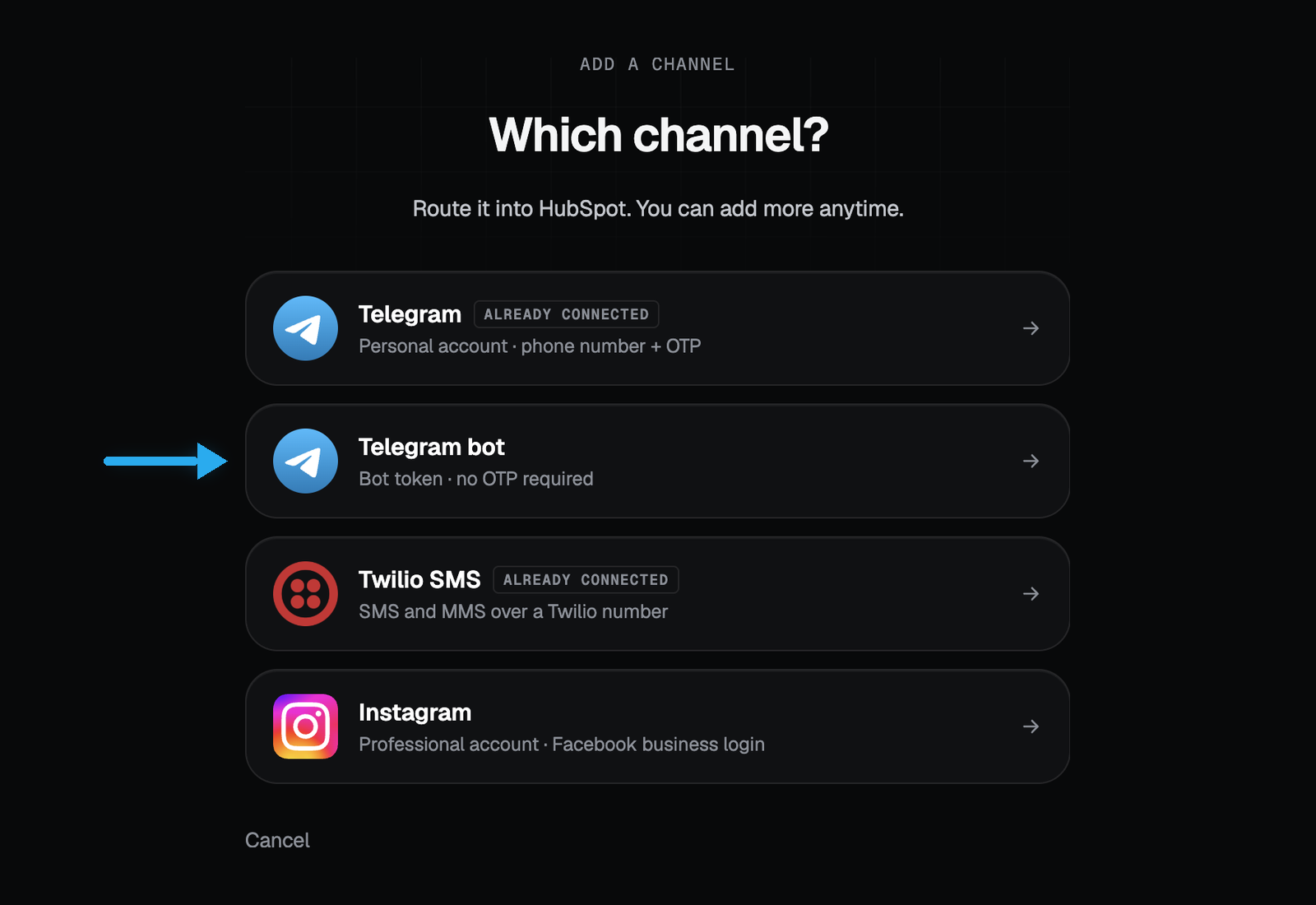
In TryWired, click Add a channel. Pick the second option, Telegram bot, bot token and no OTP required. The first option is for a personal Telegram account and has its own guide.
TryWired · Add a channel Open @BotFather in Telegram
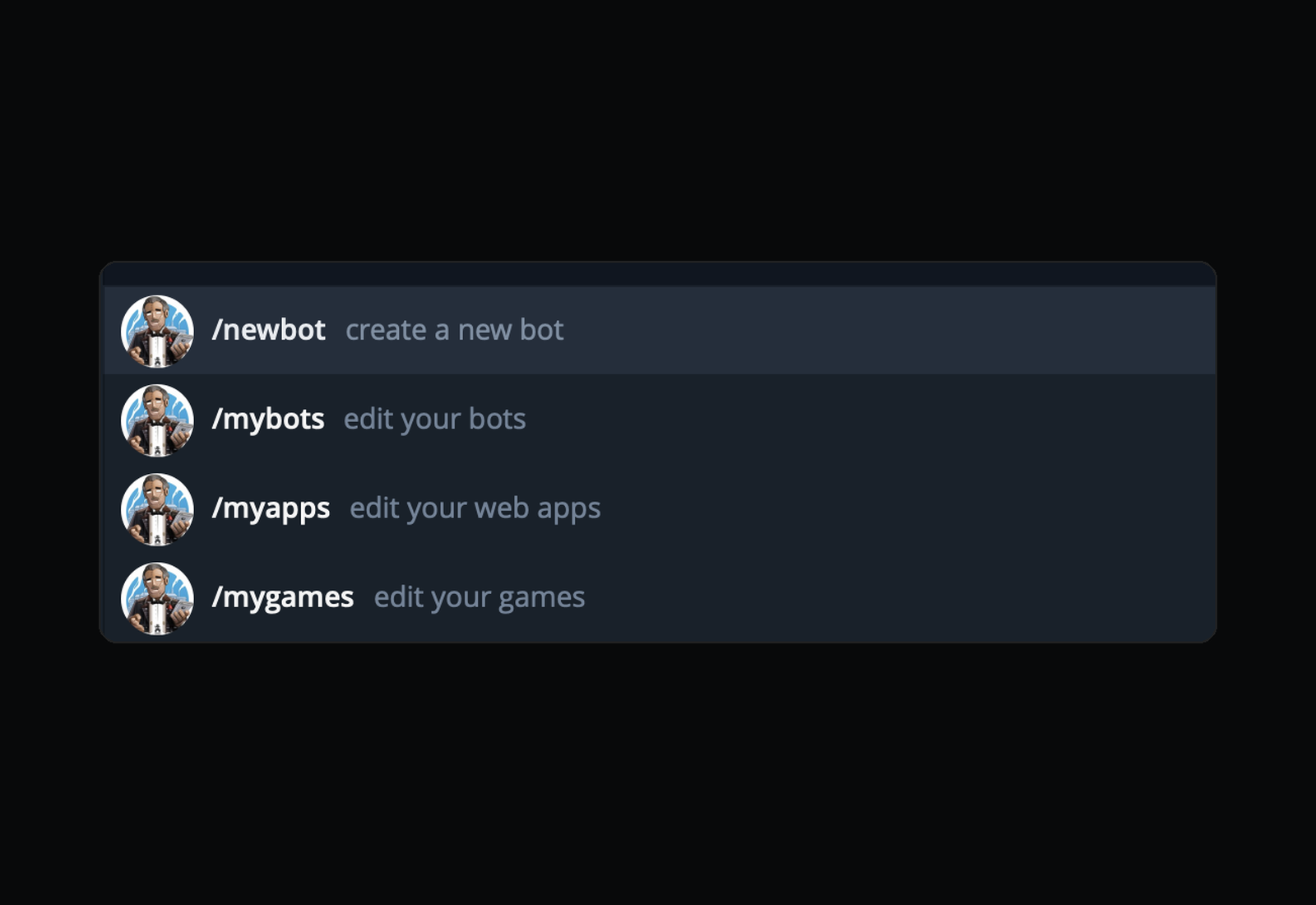
Leave TryWired open and switch to Telegram. Search for @BotFather, Telegram’s own bot for creating and managing bots, and open the chat. Send the /newbot command.
Tip: Any Telegram account can create a bot. The bot is separate from your personal account and will have its own name and @username.
Telegram · @BotFather commands Name the bot and copy its token
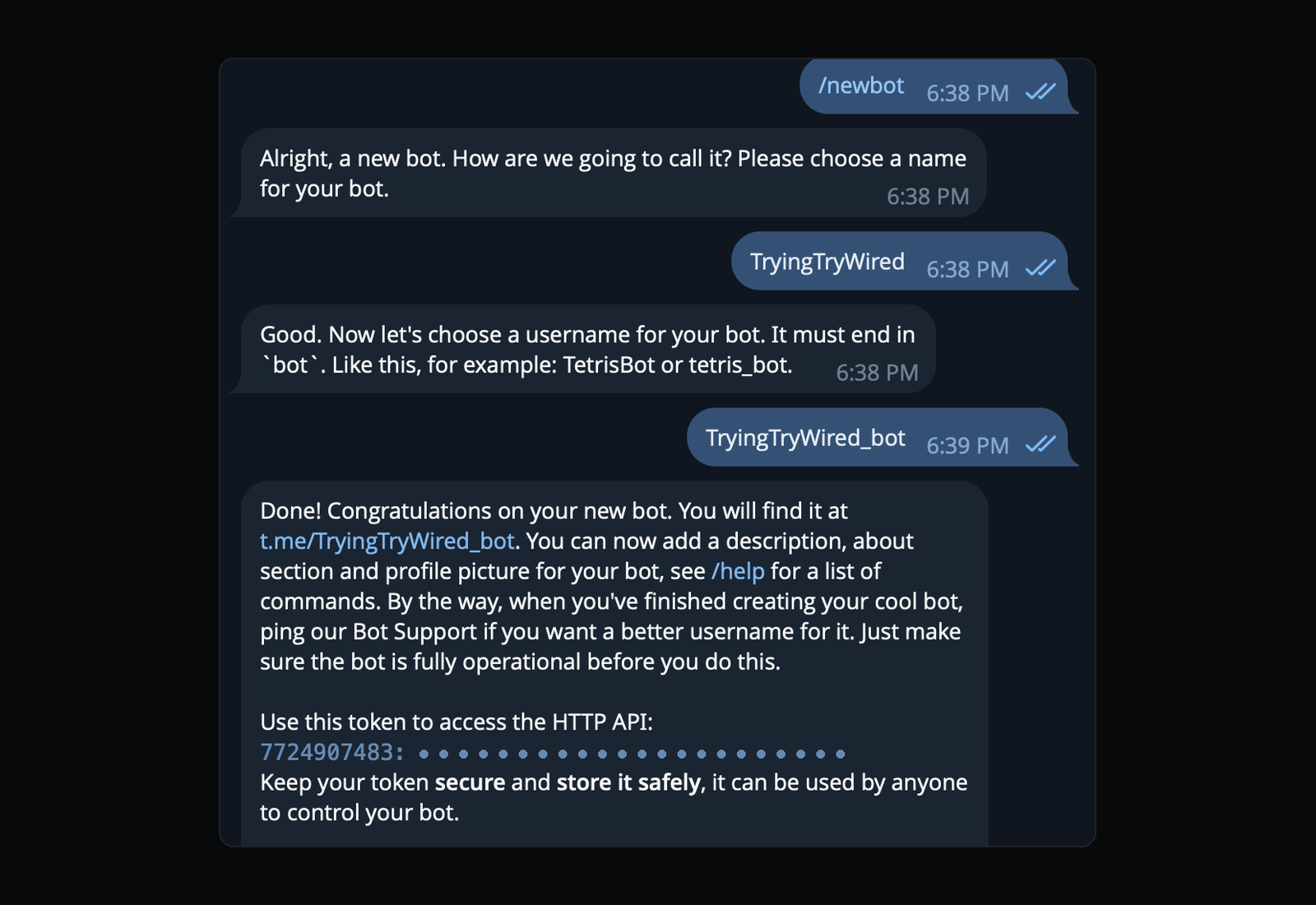
BotFather asks for a display name, then a username that must end in bot. Once both are accepted it replies with the bot’s API token. Copy it.
Tip: Treat the token like a password. Anyone who has it can control the bot. If it is ever exposed, send /revoke to BotFather to invalidate it and issue a new one.
Telegram · @BotFather (token masked) Paste the token into TryWired
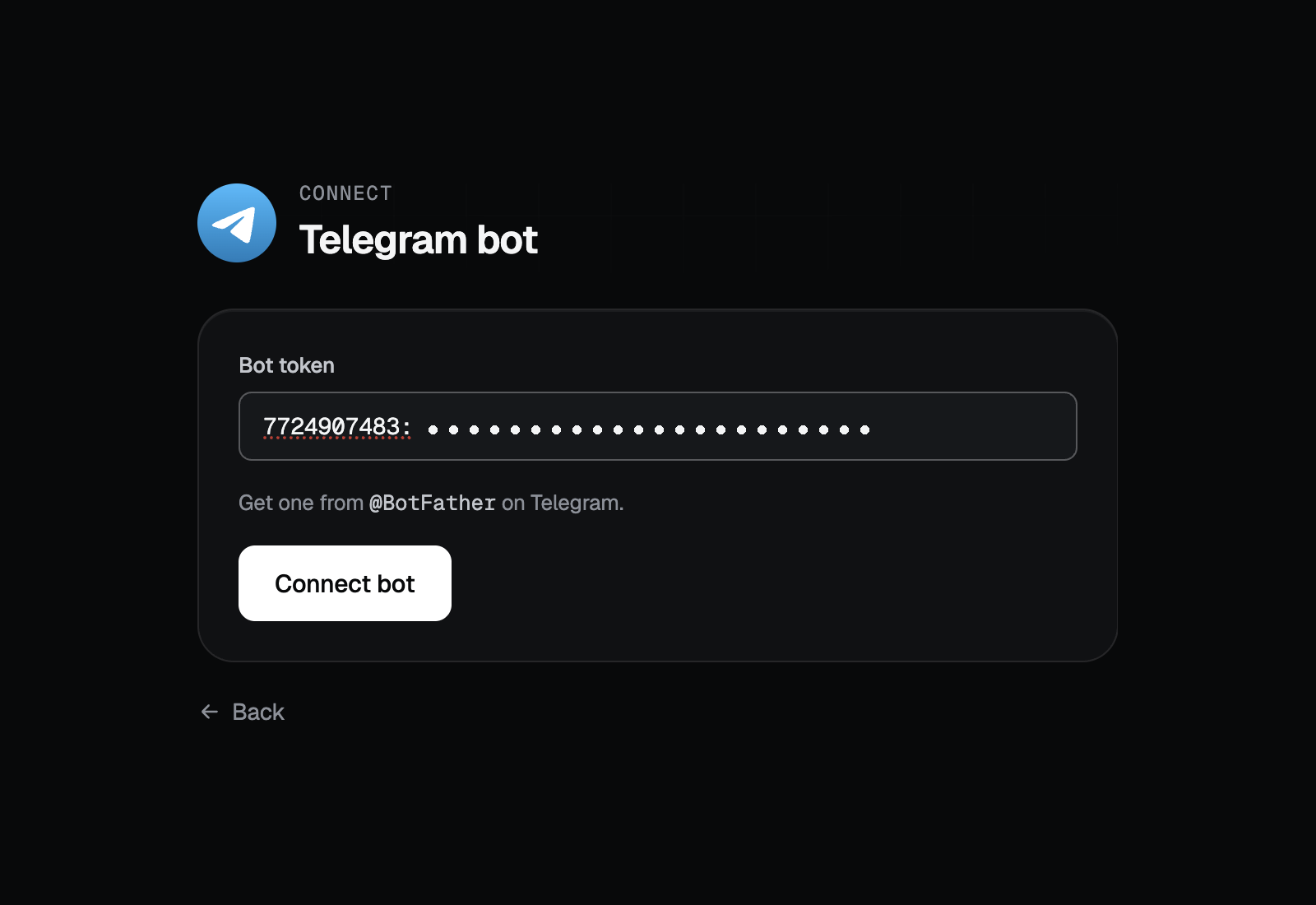
Back in TryWired, paste the token into the Bot token field and click Connect bot. TryWired checks the token with Telegram before saving it, so an incomplete paste is caught here rather than later.
TryWired · Connect Telegram bot (token masked) Choose the HubSpot inbox
Pick the HubSpot conversations inbox where this bot’s messages should appear. Help Desk inboxes are listed too if your portal has them. Click Create bridge.
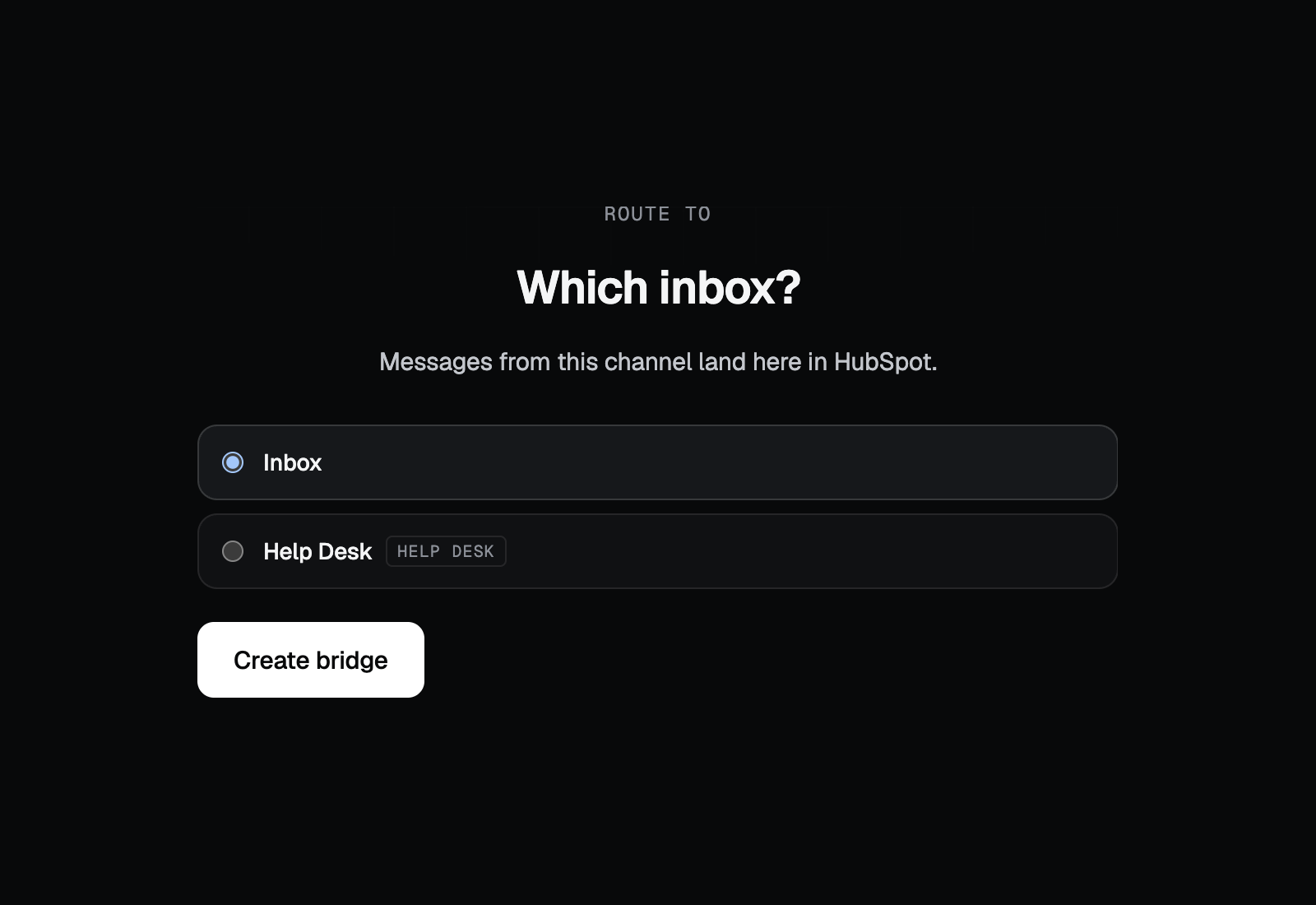
TryWired · Route to a HubSpot inbox Confirm the bot is live
TryWired confirms the channel is connected and starts syncing straight away. Click Enter workspace to see it in your channel list. To test it, open the bot from another Telegram account using its t.me link, press Start, and send a message.
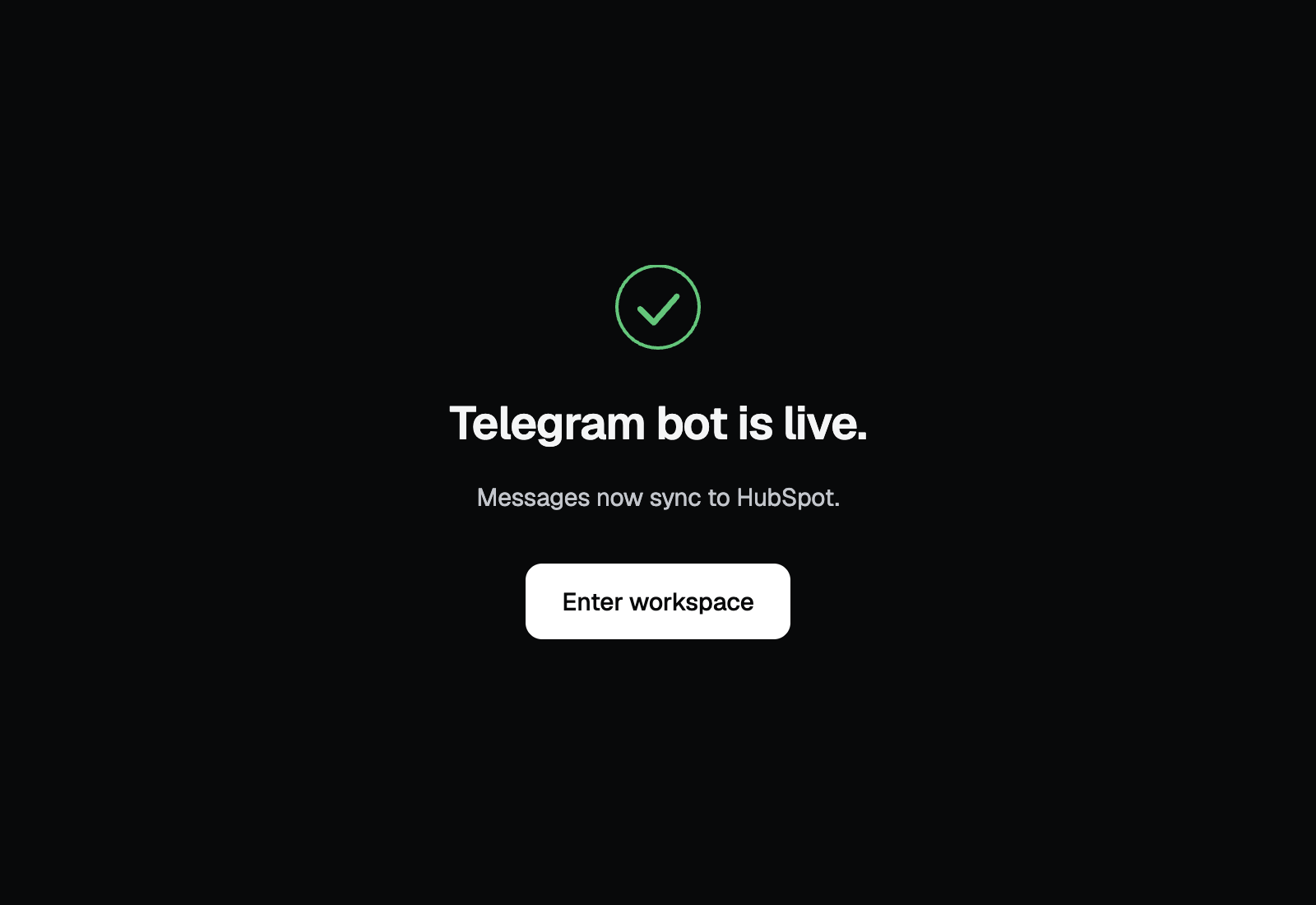
TryWired · Channel connected


That’s it, you’re connected
New conversations arrive in the HubSpot inbox you selected. You can change the inbox, add another channel, or disconnect this one at any time from TryWired.
Use the app
Once a channel is live, most of the work happens without anyone touching TryWired again. Your team works inside HubSpot.
What happens automatically
- Anyone who opens your bot and presses Start creates a conversation in the HubSpot inbox you selected.
- The sender is matched to a HubSpot contact by Telegram username, or by Telegram user ID when there is no username. A contact is created when nothing matches, so no email address or phone number is required.
- Each conversation is logged as HubSpot communication activity on the contact’s timeline, and associated with the companies and deals already linked to that contact.
- Supported photos and documents are carried across with the message in both directions.
- There is no sign-in session to keep alive. A bot token stays valid until you revoke it, so the connection does not need periodic re-authentication.
What your team does
- Reply from the HubSpot conversations inbox exactly as you would on any other channel. Replies are delivered back to the original Telegram conversation.
- Share the bot’s @username or t.me link wherever customers will find it, since a Telegram bot cannot message someone who has not opened a chat with it first.
- Assign threads, leave internal comments, and close conversations using HubSpot’s own inbox tools.
- Add more channels, or change which inbox a channel routes to, from your TryWired workspace.
Disconnect the app
Disconnecting a channel stops that bot syncing, while leaving TryWired installed in HubSpot and any other channels running.
- Open your TryWired workspace and go to the channel list.
- Open the Telegram bot channel you want to remove and choose Disconnect.
- Confirm. The channel stops syncing immediately.
What happens to your data
- Message sync stops in both directions. New messages to the bot no longer reach HubSpot, and HubSpot replies are no longer delivered to Telegram.
- Nothing is removed from HubSpot. Conversations and timeline activity already written to your CRM stay exactly where they are.
- TryWired stops using the stored bot token and, along with the other data associated with that channel, deletes or de-identifies it within a reasonable period. See the privacy policy for retention detail.
- The bot itself continues to exist in Telegram. It simply stops being connected to HubSpot until you reconnect it with the same token.
To be certain the token can never be used again, send /revoke to @BotFather and select the bot. That invalidates the old token everywhere and issues a new one.
Uninstall the app
Uninstalling removes TryWired’s access to your HubSpot account entirely, and stops every channel connected to that portal at once. You can reinstall from the HubSpot App Marketplace whenever you want to start again.
- In HubSpot, click the settings icon in the top navigation bar.
- In the left sidebar, go to Integrations, then Connected Apps.
- Find TryWired, open the Actions menu, and choose Uninstall. Confirm when HubSpot asks.
HubSpot documents this flow inConnect apps to HubSpot.
What happens to your data
- HubSpot revokes the app’s access tokens. TryWired can no longer read or write anything in that account.
- Every TryWired channel routing into that portal stops, across every channel type you have connected.
- Conversations and activities already logged stay in HubSpot. Uninstalling does not delete CRM records.
- To have the data TryWired holds deleted as well, use thedata deletion request form.
Troubleshooting
- The HubSpot authorization step fails
- Almost always the plan or the permission. Confirm the portal has Sales Hub or Service Hub Professional or Enterprise, and that your HubSpot user has Account Access.
- TryWired rejects the bot token
- Usually an incomplete copy. The token is one unbroken string: a numeric bot ID, a colon, then a long secret, with no spaces or line breaks. If you have lost it or it was revoked, send /token to BotFather and select the bot to get the current one.
- Messages sent to the bot never appear in HubSpot
- Telegram only delivers messages to a bot after the person has opened the chat and pressed Start. Confirm that happened, that the channel shows as connected in TryWired, and that you are looking at the HubSpot inbox you chose during setup.
- A reply from HubSpot is not delivered
- A bot can only send to people who have started a chat with it, and cannot start one itself. If the customer has blocked or deleted the chat, Telegram refuses the message regardless of the integration.
Still stuck? Emailsupport@trywired.io and include the HubSpot portal ID and the step you reached.