Connect a personal Telegram account to HubSpot
Everything needed to install TryWired, sign in to the Telegram account you already use for customer conversations, and route it into a HubSpot inbox. Around five minutes end to end.
What the app does
TryWired connects the Telegram account you already use for customer conversations to a HubSpot conversations inbox. Messages arrive in HubSpot as normal conversations, your team replies from the inbox, and every exchange is logged on the contact record. Messages you send from the Telegram app on your own phone are captured too, so the HubSpot thread reflects both sides rather than only what was sent from the CRM.
- Incoming direct messages and group messages create or continue a conversation in the HubSpot inbox you selected.
- The sender is matched to a HubSpot contact by Telegram username, or by Telegram user ID when there is no username. A contact is created when nothing matches, so no email address or phone number is required.
- Each conversation is logged as HubSpot communication activity on the contact’s timeline, and associated with the companies and deals already linked to that contact.
This guide covers a personal Telegram account. To connect a BotFather bot instead, follow the Telegram bot guide.
Before you start
Two HubSpot requirements are worth checking first, because the install fails at the last step without them.
- Sales Hub or Service Hub, Professional or Enterprise. Custom conversations channels use HubSpot’s Conversations API, which Starter tiers and the free CRM do not include.How to check your plan.
- Account Access permission for the HubSpot user who runs the install. In HubSpot: Settings, then Users & Teams, open the user, and look under the Account tab.
- Access to the Telegram account you want to connect: its phone number, and a device where it is signed in to receive the login code.
A note on personal accounts. A personal Telegram account stays subject to Telegram’s terms, rate limits, and enforcement. TryWired keeps sending volumes conservative, but for structured or high-volume support a Telegram bot is the safer choice.
Install the app
Installing connects TryWired to your HubSpot account. It happens once per HubSpot portal, no matter how many channels you go on to add.
Nothing here is one-way. TryWired can be installed from the HubSpot App Marketplace whenever you want it, and removed just as easily from Settings, Integrations, Connected Apps inside HubSpot. See Uninstall the app for what that removal does to your data.
Start the install
Install TryWired from the HubSpot App Marketplace, or open app.trywired.io and start the HubSpot connection from there. Both routes end at the same HubSpot authorization screen.
Choose the HubSpot account
If you are signed in to more than one HubSpot account, HubSpot asks which one to install into. Pick the portal that holds the conversations inbox you want messages to land in.
Review and approve the permissions
HubSpot lists every permission TryWired requests, including access to your conversations inbox and to the contact records the app reads and writes. Click Connect app to approve. HubSpot returns you to TryWired once the app is installed.
Tip: If this step fails, the cause is almost always the plan or the permission, not the app. See the requirements above.
Connect your Telegram account
With TryWired installed, add the Telegram account itself and tell it where messages should go. Each screen below is what you will see in TryWired.
Choose Telegram, personal account
In TryWired, click Add a channel. Pick the first option, Telegram, personal account, phone number and OTP. The second option, Telegram bot, is for a BotFather bot and has its own guide.
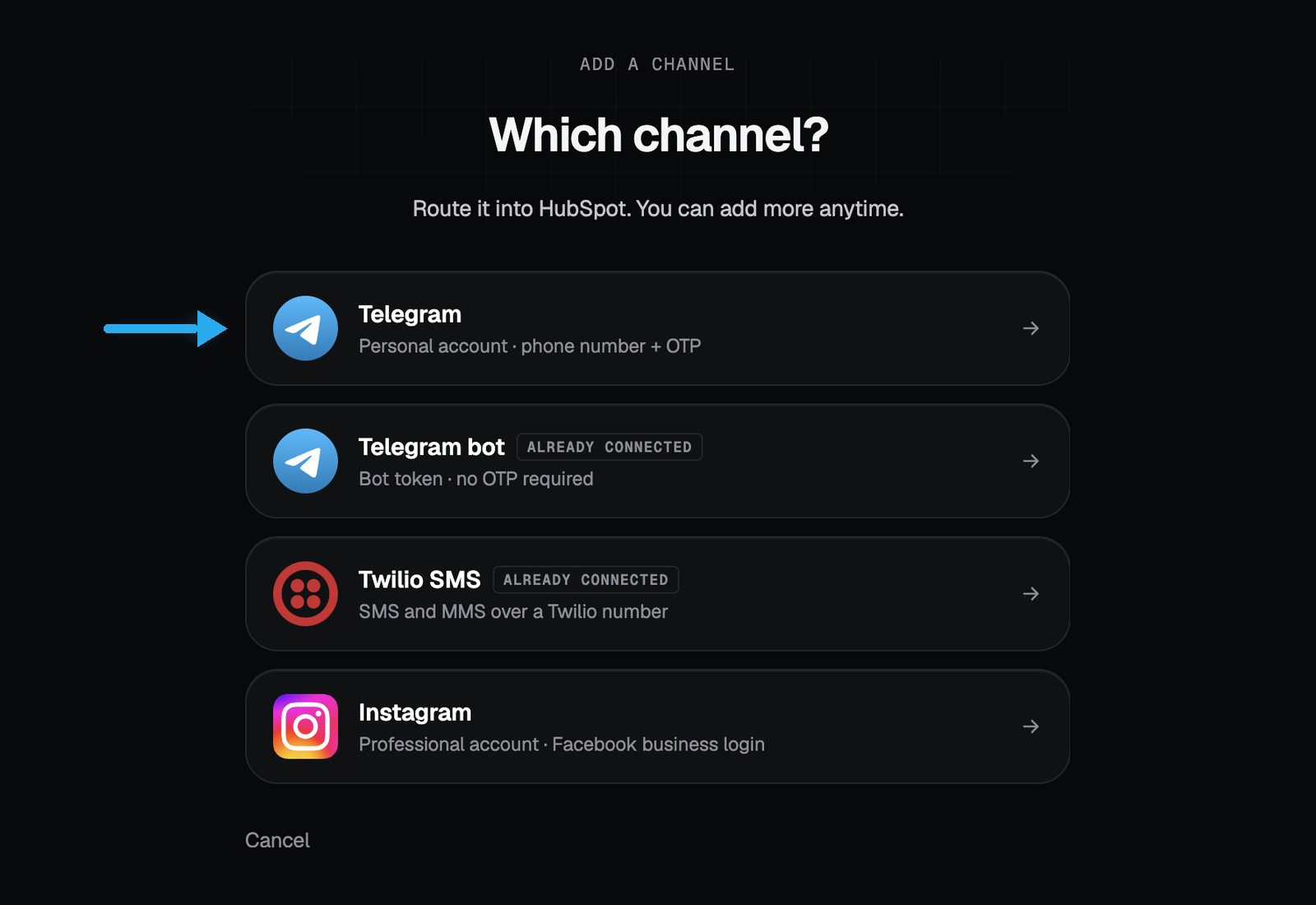
TryWired · Add a channel Enter the phone number
Type the phone number of the Telegram account you want to connect, in full international format including the country code. Click Send code.
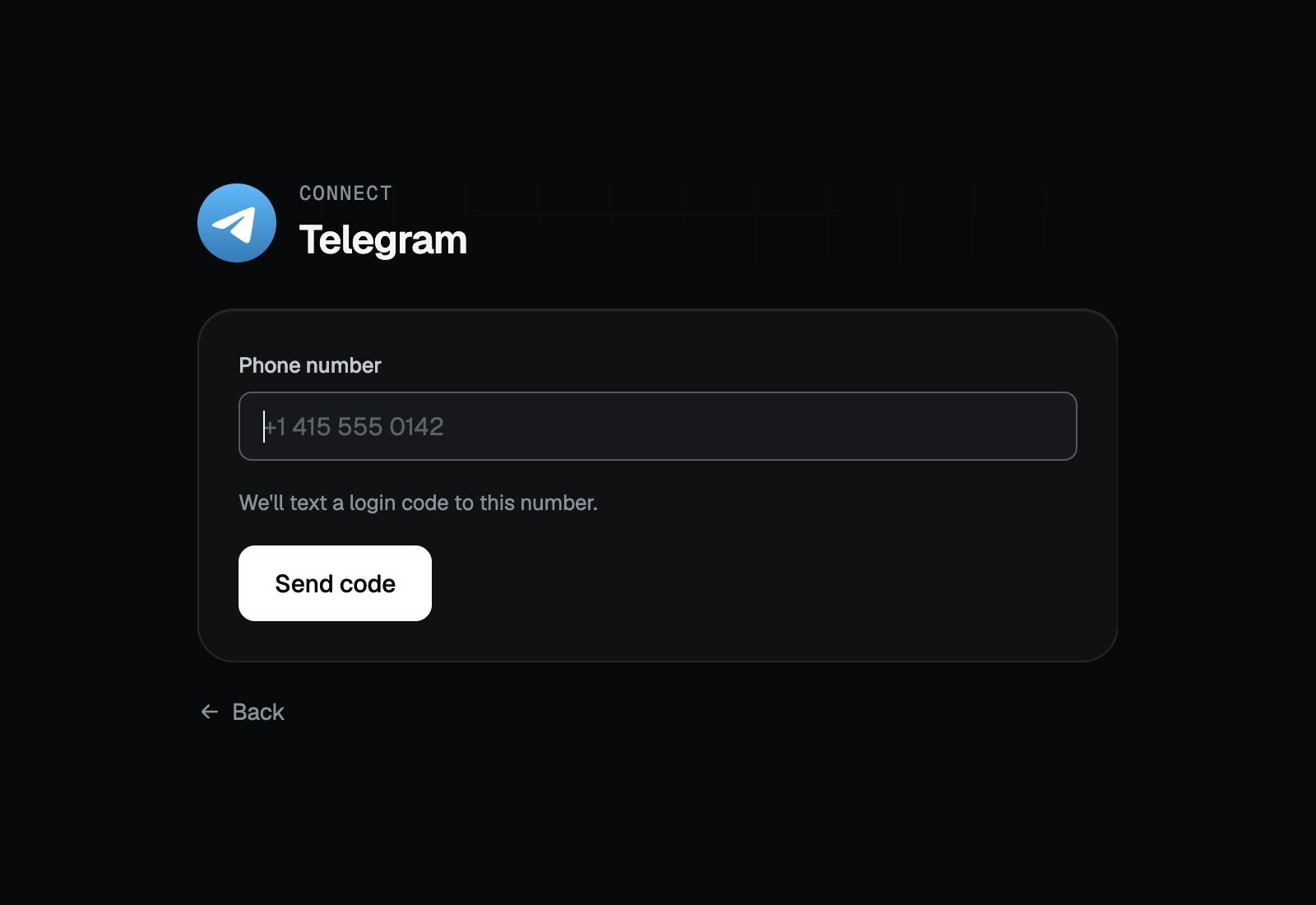
TryWired · Connect Telegram Enter the login code
Telegram sends a login code to that account. It arrives as a Telegram message on a device where the account is already signed in, rather than as an SMS. Enter the code and click Verify. If the account has two-step verification turned on, Telegram asks for that password as well.
Tip: Keep Telegram open on your phone while you do this step, since the code arrives there.
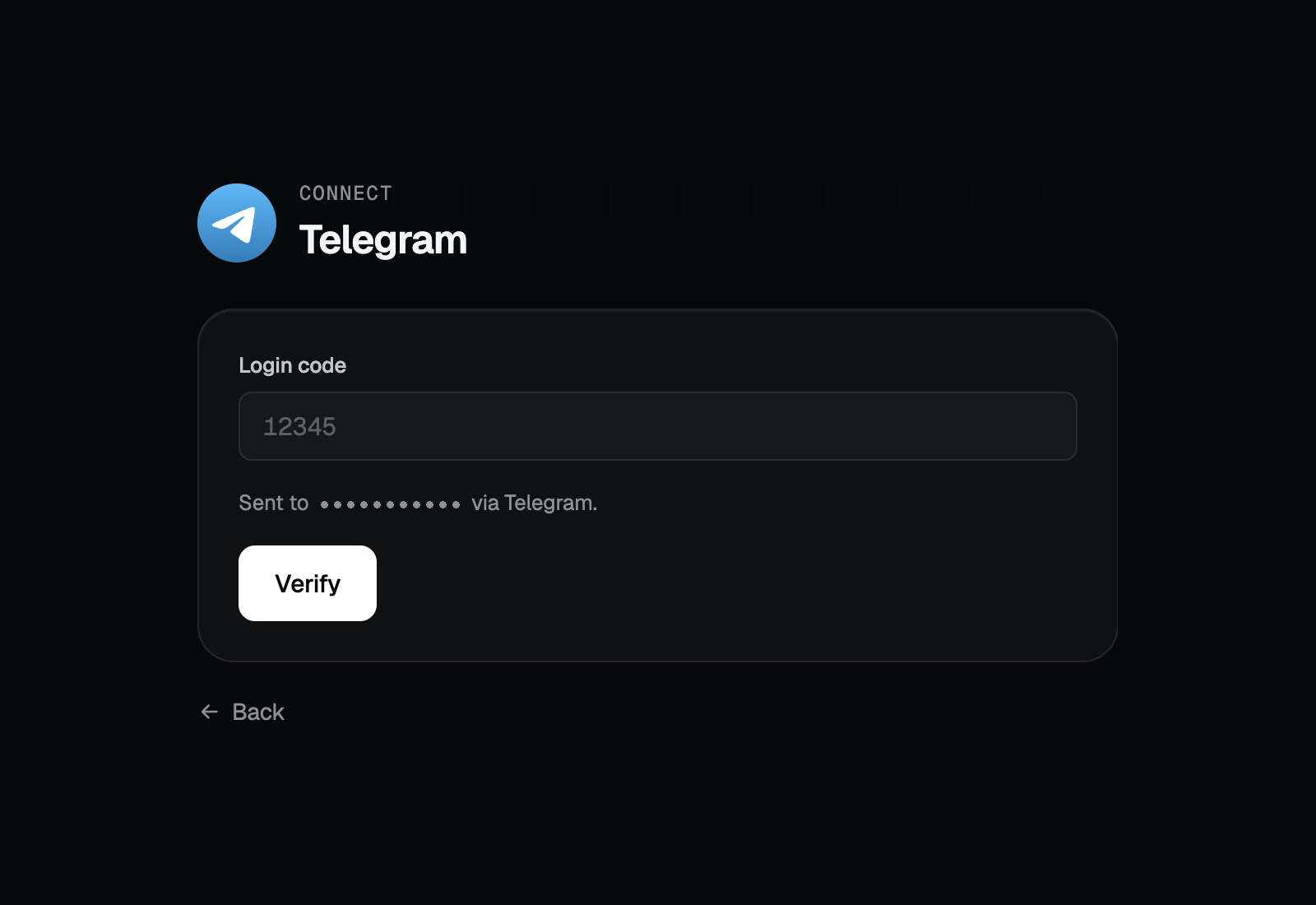
TryWired · Login code (number masked) Choose the HubSpot inbox
Pick the HubSpot conversations inbox where this account’s messages should appear. Help Desk inboxes are listed too if your portal has them. Click Create bridge.
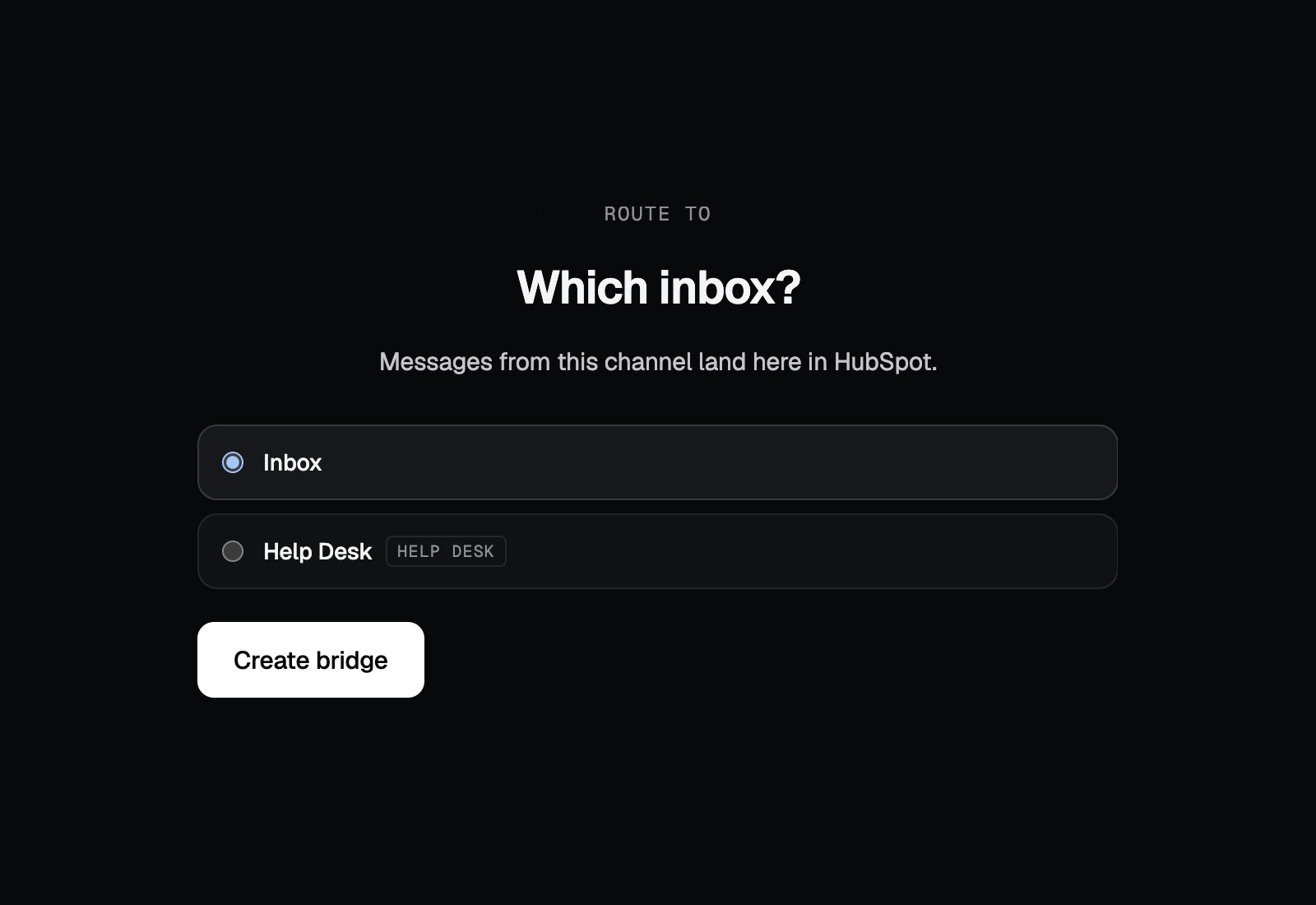
TryWired · Route to a HubSpot inbox Confirm the channel is live
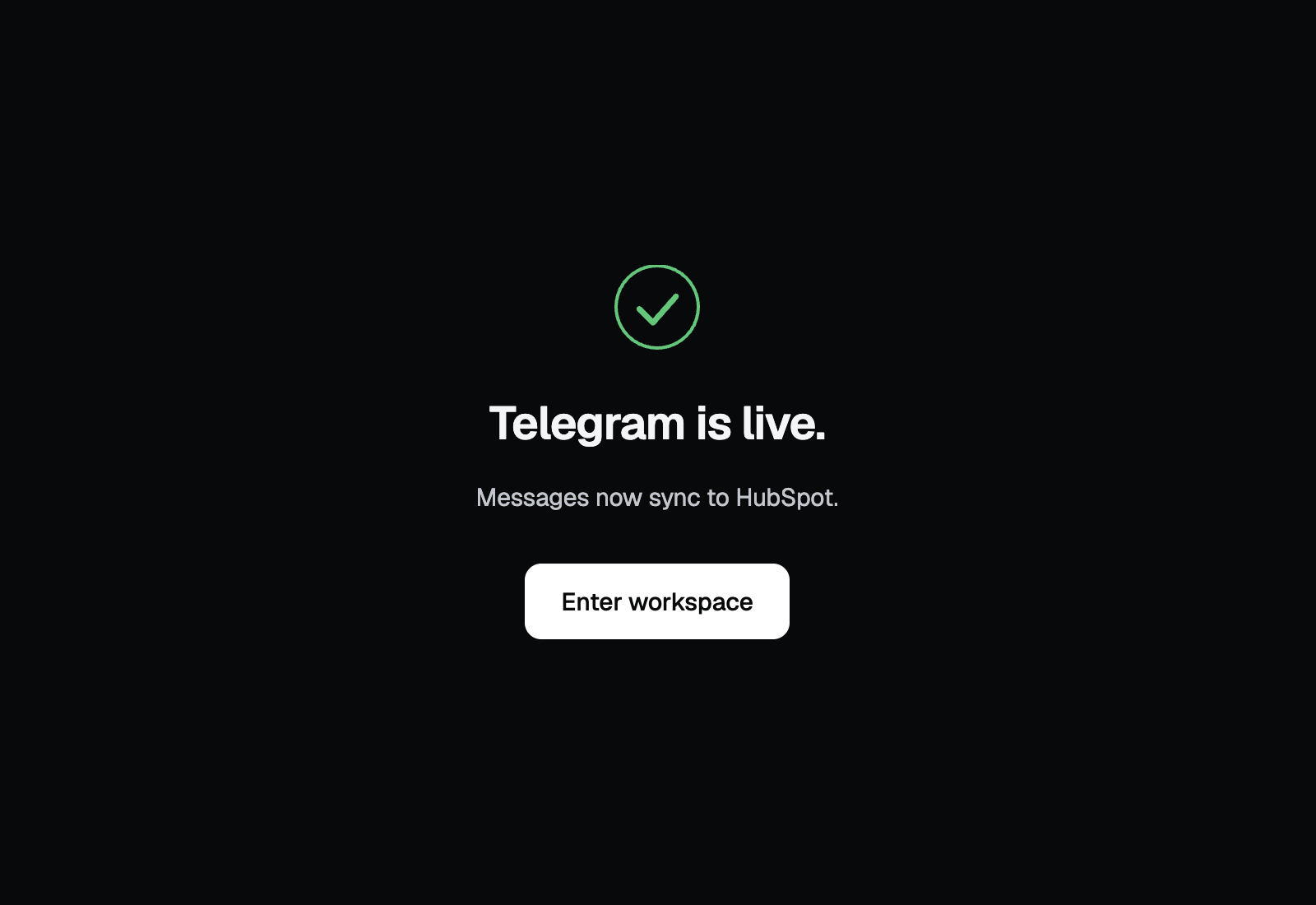
TryWired confirms the channel is connected and starts syncing straight away. Click Enter workspace to see it in your channel list. Message the connected account from a different Telegram account to check that the conversation reaches the inbox you chose.
TryWired · Channel connected


That’s it, you’re connected
New conversations arrive in the HubSpot inbox you selected. You can change the inbox, add another channel, or disconnect this one at any time from TryWired.
Use the app
Once a channel is live, most of the work happens without anyone touching TryWired again. Your team works inside HubSpot.
What happens automatically
- Incoming direct messages and group messages create or continue a conversation in the HubSpot inbox you selected.
- The sender is matched to a HubSpot contact by Telegram username, or by Telegram user ID when there is no username. A contact is created when nothing matches, so no email address or phone number is required.
- Each conversation is logged as HubSpot communication activity on the contact’s timeline, and associated with the companies and deals already linked to that contact.
- Messages sent from the Telegram app on your own devices are recorded as outbound on the same thread, so the HubSpot record shows both sides of the conversation.
- Supported photos and documents are carried across with the message in both directions.
What your team does
- Reply from the HubSpot conversations inbox exactly as you would on any other channel. Replies are delivered back to the original Telegram conversation.
- Assign threads, leave internal comments, and close conversations using HubSpot’s own inbox tools.
- Attach a supported file to a HubSpot reply and it is sent on to the Telegram thread.
- Add more channels, or change which inbox a channel routes to, from your TryWired workspace.
Disconnect the app
Disconnecting a channel stops that Telegram account syncing, while leaving TryWired installed in HubSpot and any other channels running.
- Open your TryWired workspace and go to the channel list.
- Open the Telegram channel you want to remove and choose Disconnect.
- Confirm. The channel stops syncing immediately.
What happens to your data
- Message sync stops in both directions. New Telegram messages no longer reach HubSpot, and HubSpot replies are no longer delivered to Telegram.
- Nothing is removed from HubSpot. Conversations and timeline activity already written to your CRM stay exactly where they are.
- TryWired stops using the stored Telegram session and, along with the other data associated with that channel, deletes or de-identifies it within a reasonable period. See the privacy policy for retention detail.
- Reconnecting the same account later means signing in again with a fresh login code.
You can also end the session from Telegram itself, on any device: Settings, then Devices, then terminate the TryWired session.
Uninstall the app
Uninstalling removes TryWired’s access to your HubSpot account entirely, and stops every channel connected to that portal at once. You can reinstall from the HubSpot App Marketplace whenever you want to start again.
- In HubSpot, click the settings icon in the top navigation bar.
- In the left sidebar, go to Integrations, then Connected Apps.
- Find TryWired, open the Actions menu, and choose Uninstall. Confirm when HubSpot asks.
HubSpot documents this flow inConnect apps to HubSpot.
What happens to your data
- HubSpot revokes the app’s access tokens. TryWired can no longer read or write anything in that account.
- Every TryWired channel routing into that portal stops, across every channel type you have connected.
- Conversations and activities already logged stay in HubSpot. Uninstalling does not delete CRM records.
- To have the data TryWired holds deleted as well, use thedata deletion request form.
Troubleshooting
- The HubSpot authorization step fails
- Almost always the plan or the permission. Confirm the portal has Sales Hub or Service Hub Professional or Enterprise, and that your HubSpot user has Account Access.
- The login code never arrives
- Telegram sends it in-app, to a device where the account is already signed in, rather than by SMS. Check Telegram itself first. Also confirm the number was entered in full international format.
- Nothing arrives after connecting
- Check the channel shows as connected in TryWired, and that you are looking at the same HubSpot inbox you chose during setup. Test by messaging the connected account from a different Telegram account, not from the account itself.
Still stuck? Emailsupport@trywired.io and include the HubSpot portal ID and the step you reached.